 Genzee
Image Optimization: Make Your Website and Uploads Faster
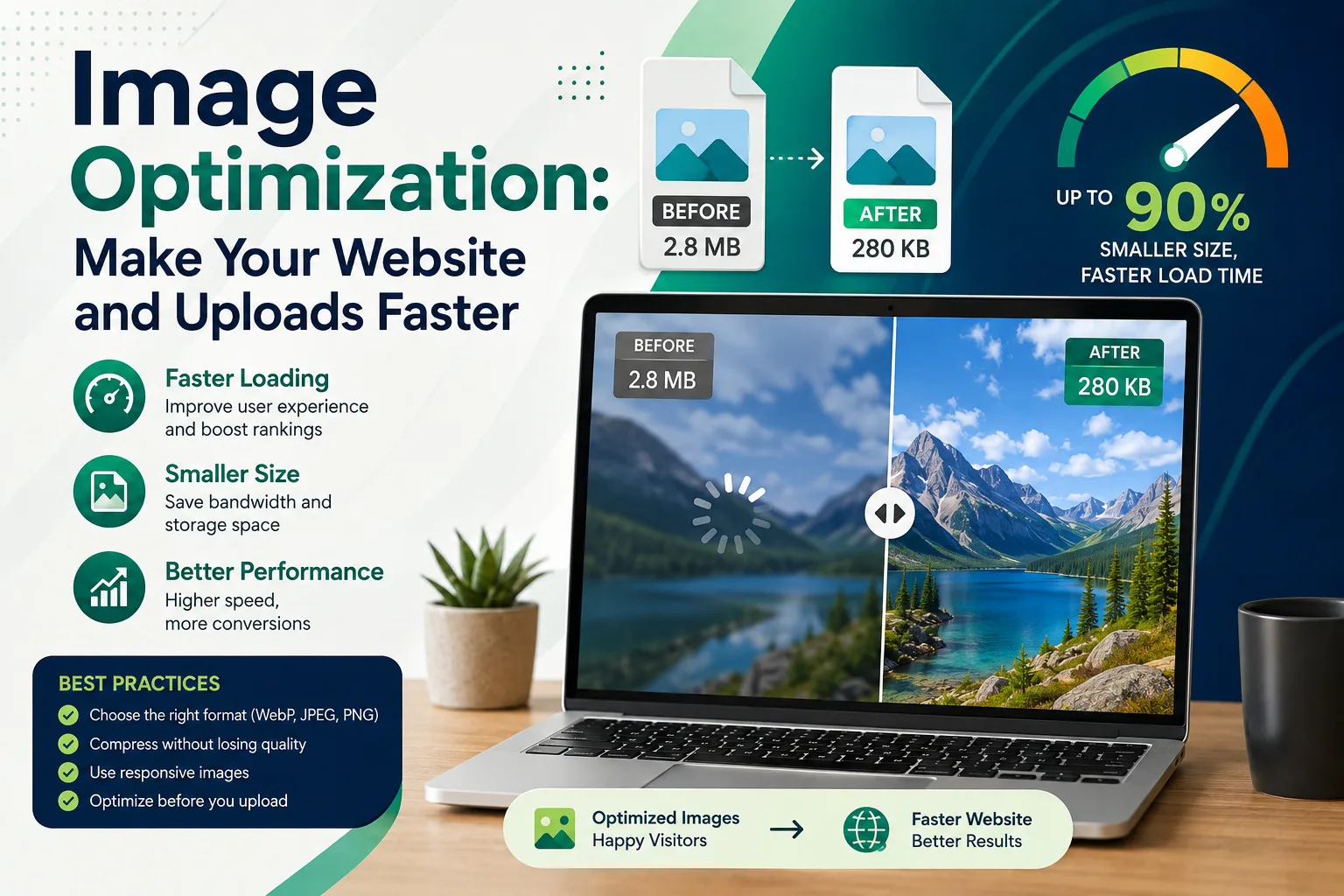
When a webpage crawls, the culprit is rarely code — it's a 4 MB photo doing the job of a 150 KB one. Images routinely account for half or more of a page's total weight, and on Pakistani mobile networks (where much browsing happens on 3G-quality connections and metered data), every wasted megabyte is a visitor lost and someone's data budget spent. The fix requires no plugins and no expertise: three concepts and a ten-minute workflow.
Why image files are so big (and why they don't need to be)
A phone camera shoots for printing and cropping headroom: 4000×3000 pixels, 12 million of them, 3–5 MB. A blog column displays at most ~800 pixels wide; even a full-screen hero needs ~1920. Displaying a 4000-pixel image in an 800-pixel space forces every visitor to download 25× more pixels than their screen will ever show. The browser shrinks it visually — after the megabytes have already crossed the network. That's the whole problem, and it has two independent solutions that multiply together.
Lever 1: Resize to the display size
Cutting a 4000×3000 photo to 1920×1440 discards 76% of the pixels before compression even starts. Practical width targets: 1920px for full-width heroes, 1200px for standard content images, 800px for blog-column photos, 400px for thumbnails. Our image compressor resizes and compresses in one pass, entirely in your browser — nothing uploads anywhere.
Lever 2: Compress at the right quality
JPEG and WebP discard visual detail your eye barely registers; the quality slider decides how aggressively. The sweet spot for photos is 70–80% — files shrink 60–90% with no visible difference at normal viewing. The worked math: a 4.2 MB phone photo, resized to 1920px and compressed at 75%, lands around 300 KB — a 93% reduction — and on a 2 Mbps connection that's the difference between a 17-second load and under 2 seconds.
Lever 3: Pick the right format
- JPG — photographs. The universal default; every platform accepts it.
- PNG — screenshots, logos, graphics with text or transparency. Lossless, so photos in PNG are needlessly huge.
- WebP — the modern web format: ~25–35% smaller than JPG at equal quality, transparency support, accepted by all modern browsers. Ideal for your own website; occasionally rejected by older upload portals — convert back to JPG when a form complains, with the format converter.
The ten-minute workflow
- Resize to the largest size the image will display (when unsure: 1920px).
- Compress at 75% quality; nudge up only if artefacts show on inspection.
- Choose format: photos → JPG (or WebP for your own site); graphics/screenshots → PNG.
- Name descriptively:
lahore-office-team.jpgbeatsIMG_4032.jpg— filenames and alt text are how search engines see images (a point straight from Google's SEO guidance). - Add alt text when publishing — accessibility and image-search ranking in one line.
Beyond the website: uploads and email
The same two levers solve the daily annoyances: the job portal's "max 500 KB" photo limit, the visa form's document size cap, the email that bounces at 25 MB of attachments. Compress first, then attach; for multi-document submissions, compress each image and combine them with the image-to-PDF converter — a four-photo application lands under 1.5 MB instead of 15.
Privacy note (and why in-browser tools matter)
"Free online compressor" usually means uploading your photos to someone's server — a strange trade for family pictures and identity documents. Every GenzeeLogics image tool (compressor, converter, PDF builder) runs entirely in your browser: disconnect from the internet after the page loads and they keep working. The speed you gain is the visitor's; the privacy you keep is yours.
Auditing a site you already have
Optimizing new images is easy; the compounding win is fixing the backlog. The audit takes an evening: open your site's slowest pages, and in the browser's developer tools (Network tab, filtered to images, cache disabled) reload and sort by size — anything above ~300 KB on a content page is a suspect, and the multi-megabyte offenders announce themselves. Re-export each through the compressor at the display width and 75% quality, replace the file, and re-test; most sites shed half their page weight from a dozen files. While there, grab the free structural wins: add loading="lazy" to below-the-fold images so first paint stops waiting for them, set explicit width and height attributes so text doesn't jump as images arrive (a direct Core Web Vitals improvement), and fill in missing alt text page by page — accessibility, image-search traffic and Google's own SEO guidance aligned in one attribute. Re-run any free speed tester before and after; the before/after numbers are also excellent evidence if you build sites for clients. An evening of this routinely moves a sluggish site into the fast tier — no plugins, no rebuild, just the same two levers applied retroactively.